Tag: Microsoft SQL Server (page 3 of 4)

A Week in the Life- 9/23 – 9/27

Have you ever wondered what the normal work tasks of a database developer/integration engineer looks like? If you have, then this is the post for you. This is a new series of posts where I simply give an overview of what I accomplished each week, giving insight into what life as a database developer looks like for those who might be curious. I also want to do these reviews for my own records and edification, because it’s always good to keep track of the things you accomplish at your job. This post is going to review the week of September 23 – September 27, 2024.

What’s in this post

Meeting with a Software Vendor

One part of my job is interacting with various software vendors that we buy products from. I’m currently on a longer-term project where we are doing a piece-by-piece upgrades to one application that our legal department uses, so this week I met with the vendor’s development team to get an overview of the next step of this upgrade process.

One of the joys of working with vendors is sometimes you go into these meetings thinking the purpose is completely different than what it ends up being, then you have to rethink everything you planned for the meeting on the fly. That was how this meeting went. I wasn’t expecting that I would be the one taking lead on driving the topic by asking questions we needed answers to on our side before we could move forward with the next step of the upgrade. I thought the meeting was going to be the vendor giving an overview of the product for my own learning, not me driving the conversation. As someone newer to the company, this change was a little scary, but I handled it well and got good information for our team from the vendor.

Updating Security Certificates

This part of technology is something I’m still not very familiar with but had to dive into this week. My team had an ETL that broke because it could no longer communicate with our customer’s software due to an outdated security certificate. To fix this broken ETL, I had to locate the correct updated certificate and put that on our ETL server and remove the old one. After making such a small change, things were back to working as they normally do. This problem was a good learning opportunity and not nearly as difficult as I was expecting it would be.

Emergency Database Refresh

I got to experience my first emergency refresh request in our Oracle database environment this week because something went wrong with one of our production databases and the app development team wanted to refresh the database into the lowers as quickly as possible to start troubleshooting. I think fate decided we should have a good day, because our Oracle cloning process into our test environments went off without any issues and finished in about an hour, which is almost a record low. We’ve ran into numerous issues in recent months with the pluggable database cloning process in Oracle, so we are very thankful that one of those problems didn’t arise when we needed this emergency refresh.

Completing Database Permissions Requests

Another piece of Oracle work I got to experience for the first time this week was updating user permissions. We received a request from one of our application developers that they needed a service account to be granted the same level of permissions that his own account had (in test) so that he could complete a task. Although the SQL needed to complete a permissions change in Oracle looks a little different from what I’m used to in SQL Server, it overall was very similar to making permissions changes with T-SQL so was easy to complete.

Attending A Women’s Leadership Conference

My favorite part of this week was getting to spend Tuesday and Wednesday at the Women & Leadership Conference by the Andrus Center at Boise State. This was my first time attending this conference, and I was able to go with the handful of other women in the IT department.

As would be expected for this type of conference, the sessions focused on building soft skills in women instead of hard technical skills like previous work conferences I’ve attended. I listened to a range of women speakers, all of whom are in various leadership roles in different fields and states across the country. I wouldn’t say I loved every session I attended, but most of them were interesting and I learned a lot of tips for managing in the work environment as a woman that I hadn’t thought of before. In the near future, I will be writing a recap with more of my learnings from the conference, if you’re interested in hearing more.

Troubleshooting a Virtual Machine (VM)/SQL Server Connection Issue

This issue was not something I had ever considered before, because I’ve never had to think about the networking setup for VMs that I’ve worked with. Normally, someone else sets up the VM and makes sure it has all the networking and firewall rules needed before we get access to the VM. However, one of my project teammates and I found out that it’s not always the case.

I am working on a different application upgrade project from the one I mentioned above, and I was in charge of setting up those SQL Servers last week. This week, the main application developer started his portion of setting up the VMs we put the SQL Servers on, and he found that he was unable to access the SQL Server from his local computer version of SQL Server Management Studio (SSMS). When he messaged me about this connection issue, I had no idea where to start troubleshooting it since I had never had to think about how SSMS connects to the SQL Server on the VM before.

I had to work with our networking team to figure out the issue, which ended up being that the local firewall on the VM was not setup to allow ingress from the two ports that SSMS/SQL Server requires for connections. The networking team wrote two commands to allow that ingress, ran the commands on all 3 servers we setup last week, and then we were able to easily connect to the new SQL Server instances from our local SSMS apps instead of having to login to the VMs directly.

Finishing and Presenting a Python Data Analysis Script

One of the things I was most pleased and excited about this week was finally getting to demo a complicated Python script I wrote to optimize customer orders based on their previous order history, given a list of input parameters from the customer. I have spent months working on this script, going back and forth with the business users about what should be included, adding new features when requested, and even totally reworking the algorithm when their requests got more advanced. My demo of the script had an audience of the business users as well as members of my own team, including my manager.

The demo itself went really well, the script worked exactly as I wanted it to, running in under 5 seconds to optimize the customer data and provide a recommendation for what should be stocked to fulfill those orders, which is a massive improvement from the current process that takes a week to calculate the best possible solutions. What did not go as I expected was hearing from the business users that they are unsure if the solution provided is accurate enough, so they’re afraid to move forward with my script unless I did several things that would likely lead to several more months of rework. At the end of the meeting, we had decided as a team that instead of implementing this solution I worked hard on for months, that isntead we would put their current process onto a newer and beefier server in hopes that it would run faster than the current week.

No developer wants to spend months working on something just to be told that it won’t be used due to reasons that are out of the developer’s control, but that seems to be the situation I am in now. I am staying positive about it though, because it was a great Python development learning opportunity for me when I came into the company, and I have faith that with time, the business users will come around to using the faster and more modern solution when they see that the results I produced are very close to what they already get with the current solution. I might need to do a little more tweaking to get my algorithm’s results into an acceptable range compared to the current process, but I am hoping it won’t require a full rework to do so.

Summary

Sometimes I have weeks at work where I feel like I haven’t accomplished all that much. This week was one of those. But now that I have typed out everything I did like this, I am seeing that I do a LOT of work while I’m at work, and I am proud of everything I learned and accomplished this week, even if every single work item did not go as planned.

Being a database developer or data integration engineer comes with a lot of variation in work, which you can probably see by looking at this week’s and last week’s summaries. There is always something new to learn and work on, so I’m excited I’ve had another interesting week of work and I look forward to next week being interesting as well. (Although I’m technically on vacation next week, so really I mean the following week.)

Do you have any questions about what a database developer does day-to-day that I haven’t answered yet? Let me know in the comments below!
SQL Server 2022 – Getting the Installer Link to Work

I recently went through a whole day long ordeal trying to figure out how to get the ISO/installer for SQL Server 2022 so I could install it on a few VMs I made for a software upgrade, which I wrote about in a post last week. After spending way too much time just getting the installer downloaded, I then ran into another issue where when I clicked on the link to do a new installation of SQL Server 2022, the link did absolutely nothing. The solution for this problem ended up being simple, but it had me scratching my head and bothering my teammates to try running the installer as well before I figured out what needed to be done.

What’s in this post

The Problem

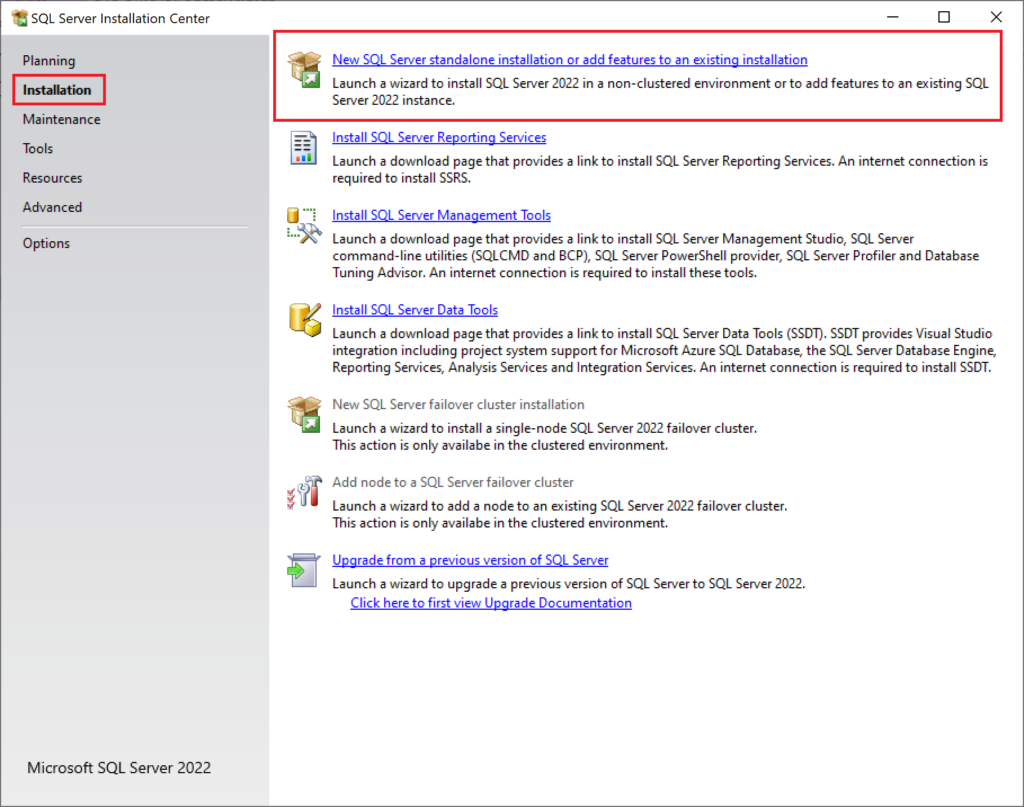
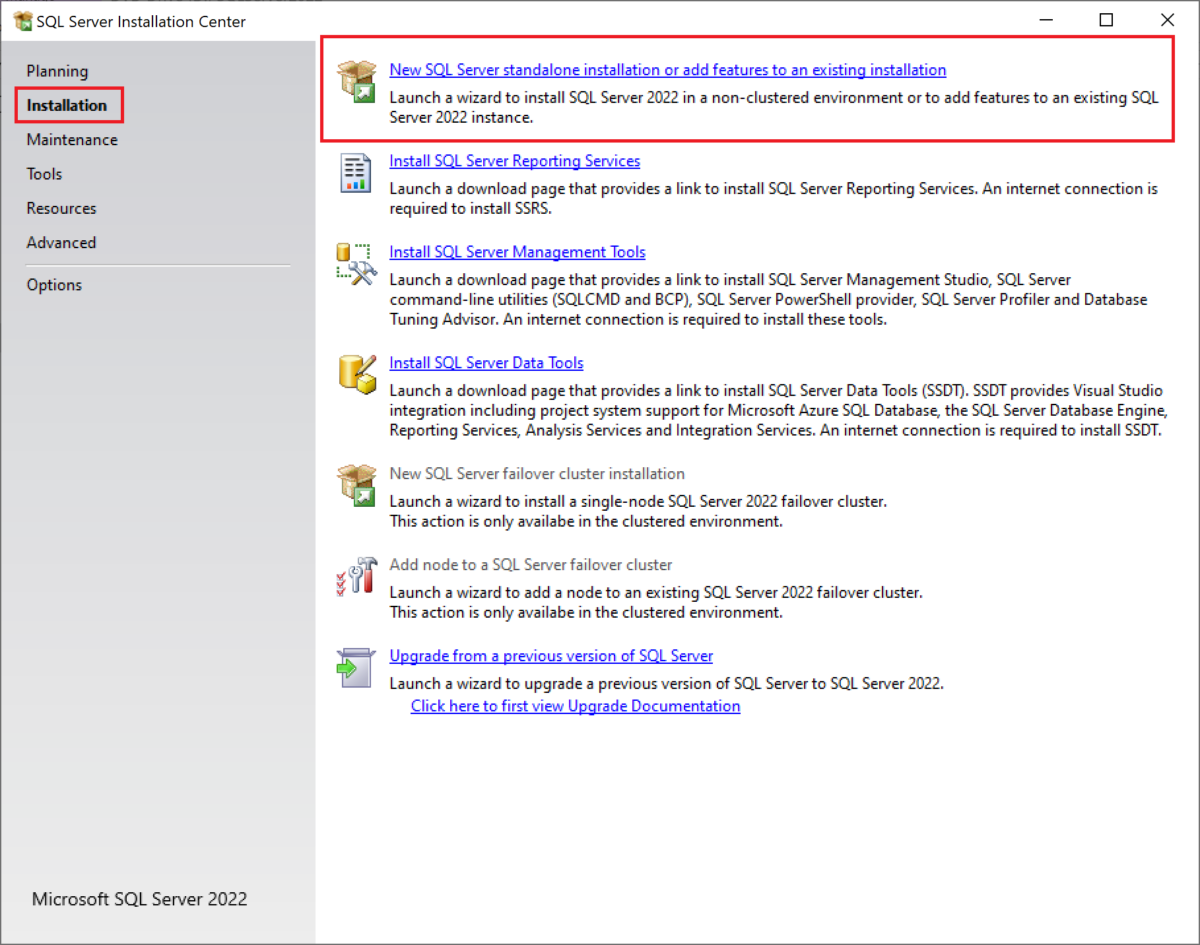
When you run the setup.exe or installer for SQL Server 2022, and select the option for “New SQL Server standalone installation or add features to an existing installation”, the software may do nothing when you click that link. It may have a spinning cursor for a small moment, but then nothing happens at all, no matter how long you wait.

The Solution

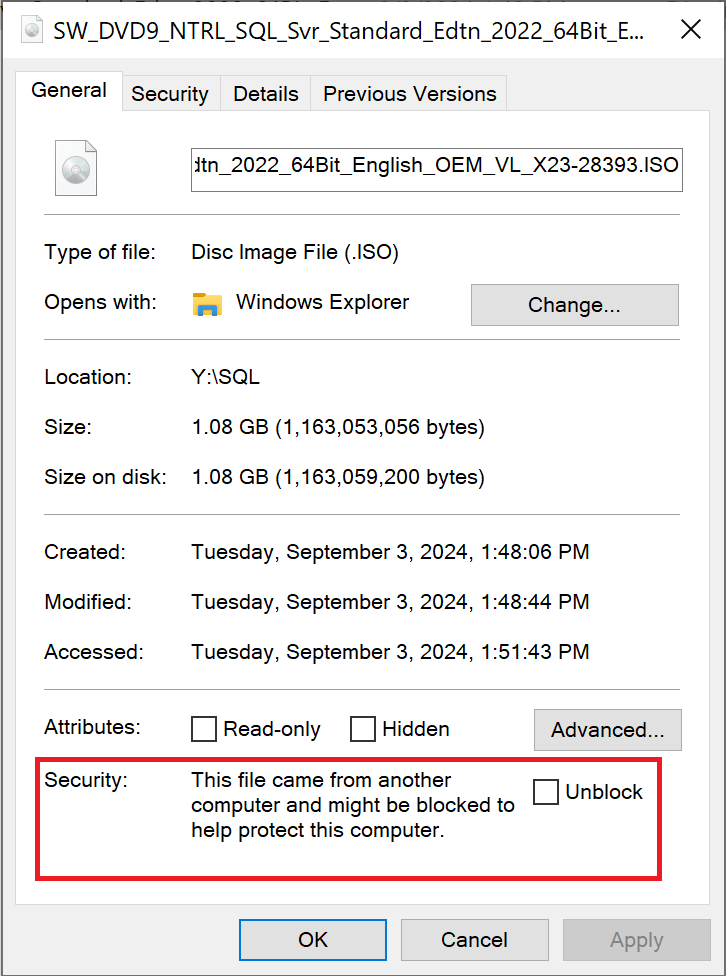
I found the answer to this issue on StackExchange. When I first downloaded and ran the installer, the standard Windows dialog came up asking if I wanted to trust the publisher of the program, since it was Unknown. I clicked yes. But despite that apparently, my computer had the file set to blocked, so when I clicked the link to start a new installation, the installer was blocked and nothing ran. To fix this problem, do the following.

Go to wherever you have the ISO file saved, for me this was the Downloads folder. Right-click on the file and select Properties. Then on that General/main page of that dialog, at the bottom there will be a checkbox that says “Unblock” with a message about security if you unblock the file. Check the box then click “OK”.

If you were experiencing the same issue that I was, you should now be able to reopen the installer file and click the link to start a new installation, and move on with your day.

Summary

There seems to be a bug with the installer for SQL Server 2022 where clicking the option to start a new installation seems to do nothing. This bug can be resolved by “Unblocking” the installer file through the Properties dialog of the file.

A Week in the Life- 9/16 – 9/20

Have you ever wondered what the normal work tasks of a database developer/integration engineer looks like? If you have, then this is the post for you. I want to start a new series of posts where I simply give an overview of what I accomplished each week, giving insight into what life as a database developer looks like for those who might be curious. I also want to do these reviews for my own records and edification, because it’s always good to keep track of the things you accomplish at your job. This post is going to review the week of September 16 – September 20, 2024.

What’s in this post

SQL Server Administration

This week was a bit of a throwback for me because one of my main tasks was to get SQL Server 2022 and one particular database up and running on three different virtual machines (VMs) for an application upgrade project I am working on. I have not created a new SQL Server, created a database backup, or restored a database backup in years. At my previous job, there was a dedicated team of DBAs that did that sort of work, and I was not on that team. But my current role is more of a jack-of-all-database-skills role, so it was time to blow the dust off my server creation skills.

The first step, of course, was to install SQL Server 2022 on each of the Windows VMs, following some guidance from the application vendor. I have never installed any SQL Server with so many custom configurations, so that was an interesting new thing to learn and do this week. After taking too much time to install SQL Server on each of the three Windows servers, I also installed SQL Server Management Studio (SSMS) 20, the main app used to interact with SQL Servers and their databases, on the VMs as well. That was the easiest part of this whole thing.

Before I could restore a copy of our production database onto these new servers, I needed to copy all existing/needed logins from the current production server to each of the new test servers so that the database restoration wouldn’t fail due to a user not having a corresponding login. I also did not want to have to manually repair all those database users when the SID values they were created with didn’t match the SIDs of the logins if I created all the new logins from scratch. This left me wondering how I could script out all the existing production logins, including their passwords (we have a lot of SQL auth logins on this server), so I didn’t have to do any of it manually. I found this very helpful Microsoft article that includes scripts for creating two stored procedures that you can then run to generate the perfect CREATE scripts for every login on a server. I would highly recommend using these scripts if you need to migrate/copy a database to a new server.

The final step that I needed to accomplish was to backup and restore a copy of the current production database to each of these new test servers so the app developers can do their side of the upgrade testing. I had to meet with one of the app developers so we could do our portions of the backup of production at the same time, since that is important on the app side to keep all data in the system aligned. Creating a backup was just as easy as I remembered.

Unfortunately, after I had the 97 GB compressed database backup file created, I then had to figure out how I was going to copy that file from the current production VM to the new test VMs, because we do not have any of these VMs networked together. My first idea was to simply do a copy/paste action from one VM to another, but that was projecting it was going to take 17 hours for one copy, and it kept failing after a few minutes with an unspecified error anyway (I’m guessing network issues). I could not think of any better way of getting the file from one server to another, and Google wasn’t being helpful for my specific situation, so I asked my main mentor coworker what he would do, and he suggested a brilliant idea: upload the backup file to one of our storage accounts in Azure by logging in on the source database, then after it’s uploaded, login to the storage account on the destination servers and download the file. This was the best idea for this situation (and only works because we do not limit internet access on our Windows server VMs, which I had at previous roles, so this method might not work for you). The upload of the 97 GB file took about 25 minutes. The download onto each of the destination servers was about 15 minutes. Much faster than the projected 17 hours of copying over our VPN directly from one to the other!

Ongoing Learning

As a part of any career, one should always be striving to learn new things and grow in their role. My current organization is fantastic at helping me to do this. Not only on an official level with conferences and online trainings, but also unofficially with everyone being willing to share what they know about our systems at any given time.

This week, I got to attend a casual training led by one of our Oracle app developers to tell us everything he knows about the Oracle Grid infrastructure and Automatic Storage Management (ASM), since those topics came up while we were troubleshooting an Oracle issue a few weeks ago, and I knew nothing about them. I also attended a more formal training with our Microsoft representatives to start wrapping up training we’ve been doing for a couple months on Azure AI and Machine Learning tools. Both of these training sessions were informative and useful and make me feel better prepared to handle upcoming projects and issues.

Python Development

Since I started at Boise Cascade, I’ve been doing a lot of development in Python, and am currently working on a project to accurately calculate optimal solutions for fullfilling customers requested wood orders. This project has been a big struggle, not due to technical issues, but due to changing requirements from the business customers, which means I’ve had to write two totally different solutions for this same problem over the past couple of months. However, the struggle is finally almost over because I have mostly wrapped up my rewrite of the solver using a new algorithm that a colleage wrote the basis of for me. (Yay for more experienced developers helping us solve difficult problems!) I am very excited about coming to a close on this program and will hopefully demo it to the business users next week to get final feedback and get it moved to prod in the very near future. The users are also very excited since this new program solves a problem in less than 5 seconds when the previous/current solution takes a literal WEEK to do the same thing. I have found it really interesting to write this program, but I also know I will find new projects equally as interesting when I finally get to move on.

Preparing for New Projects

Once I finally wrap up my wood order optimizer, I will get to move on to rewriting a different solver currently used by someone in the company who would like it automated away. To get up to speed on what the user is requesting, I met with one of my teammates this morning to get context on the solution that is currently in place and what the user wants the new solution to do differently. Basically, I needed to figure out what the heck this project was even supposed to be about. In my prep meeting, I learned that I will definitely need to meet with the user to discuss what they expect and need from the solution since they’re the one currently doing the solving manually, but I at least now have a general sense of what is being requested. I am looking forward to getting started on this project once I have the time.

Summary

That is my whole week in review! While database development usually does include a lot of writing SQL, developing ETLs to move data around, and doing other things directly with databases, that does not mean the work will always only consistent of those types of tasks. It all depends on the company you work for and how your specific role is defined. I am very thankful that my current role includes those types of tasks but also adds other work like writing data integration scripts in Python so that I can stretch my skills and knowledge.

Is there something specific you were hoping I would cover about my time at work that I didn’t cover in this post? Let me know in the comments below!

How to Download SQL Server 2022

You would think that figuring out how to download the installer for SQL Server 2022 Standard or Enterprise editions would be a simple task, much like the process for how you download any other installer or ISO for any other version of SQL Server. But with 2022, Microsoft seems to have changed their method for getting the software to people, making it a lot more locked down than other versions are. I’m not sure why this change was made, and if you have some insight please feel free to share it in a comment, but it was made and I have finally figured out how to get that installer with this new system. It took my colleagues and I a whole work day to figure this out. We had to work with our Microsoft account managers to get to the bottom of it, and it seems a little crazy to me that it would be that unintuitive to find the ISO for this software.

What’s in this post

Background

In my company’s current architecture, we create SQL Server virtual machines (VMs) by creating standard Windows servers through the Azure portal, and then one of the database developers will logon to the VM and install SQL Server through the ISO/installer, instead of creating a SQL Server VM from a provided image in Azure. In the past, when we needed to install SQL Server onto a VM, we would google something like “SQL Server 2019 download” and click on the link that takes you to the Microsoft downloads page, and then get the ISO from there. When we tried to do the same for SQL Server 2022, we were taken to a downloads page that only allowed you to download Developer or Express editions, and if we wanted to do Standard or Enterprise, we could only get an evaluation version after providing our information to start a free trial.

We obviously did not want a short trial version of the software, we wanted the full Standard edition, but could not find a full installer/ISO for that version. For a few months, we gave up and installed 2019 instead of 2022 whenever we needed to create a new server, but we reached a point where we are required to use 2022 for some applications, so I set out to find out how to get the Standard edition of SQL Server.

The Proper Method

There are two different ways that we found we could get a Standard or Enterprise edition of SQL Server 2022, and I’ll start with the method that I think they’re intending people to use. If your organization uses SQL Server in Azure already, you will likely need to go through this same method to get the installer for 2022.

I unfortunately can’t get any screenshots of this method of the process because I’m not an elevated user in our organization, but there is a way for your Azure tenant owner (and a few other select individuals) to get the latest ISOs and installers for every piece of Microsoft software your company has licenses for. I believe it is at admin.microsoft.com, but you can talk to your account representative to find out for sure. You can then navigate to “Billing” and then “Your Products” and then “Volume Licensing” where you can view all your licenses and get the downloads for them.

This is how we resolved the installer issue in our organization; we had our tenant owner download the ISO from this location and save the file in a shared location. Going forward, whenever we need an installer for any Microsoft product that we use, we will be required to have that one person download the files and send it to us (not a super convenient method if you’re a developer that doesn’t have full access to your entire Azure tenant).

Once you have the ISO, you can run it as you usually would to install any version of SQL Server, and your license key will be prefilled into the installer so you don’t need to worry about specifying that at any time during the installation process.

The Workaround Method

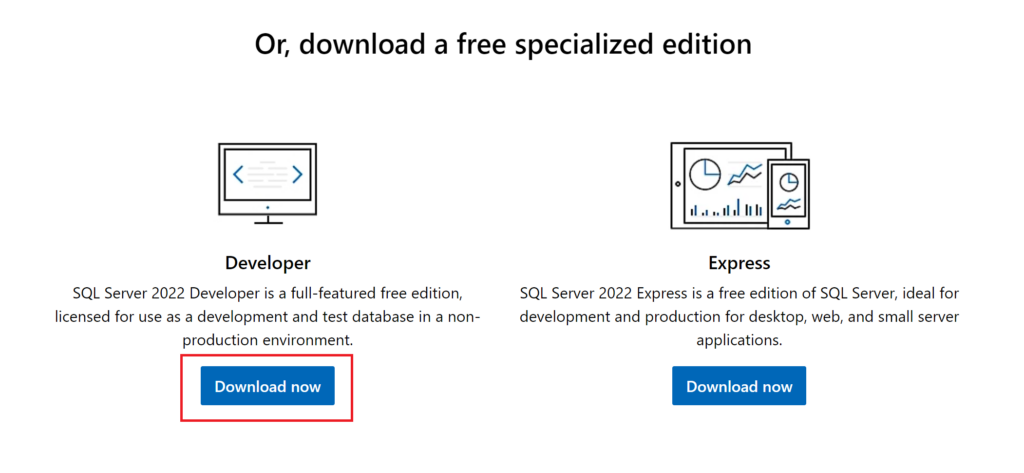
Before we had talked to our Microsoft account managers, this is the route we were going to use to be able to install SQL Server 2022 on our VMs. Go to the SQL Server 2022 page on the Microsoft website (https://www.microsoft.com/en-us/sql-server/sql-server-downloads) then download the “Developer Edition”.

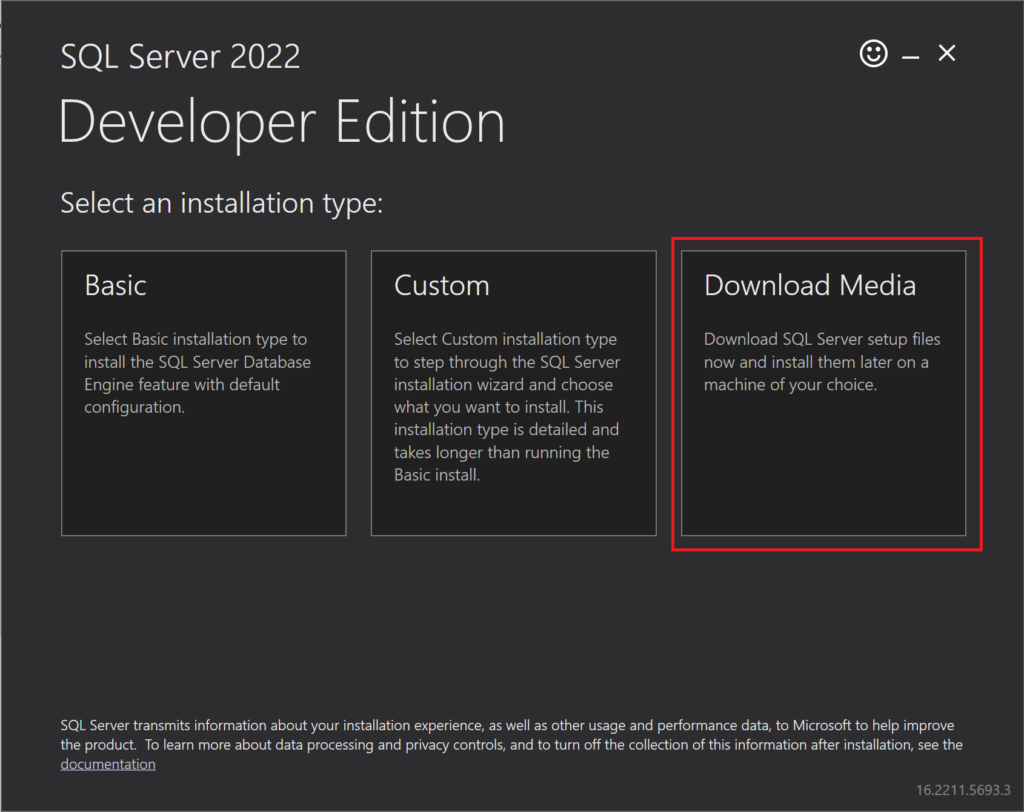
After you download that version, run the installer that you downloaded. When it first opens, click the option that says “Download Media”:

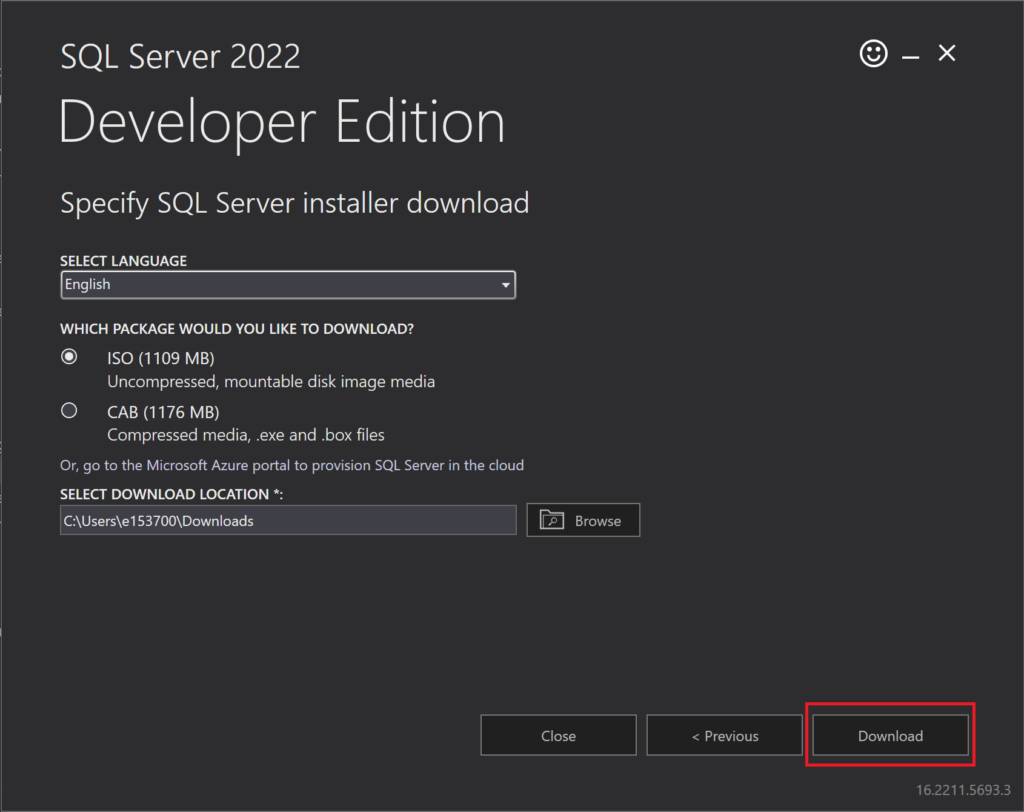
On the next page, click “Download”, which will download the ISO for SQL Server:

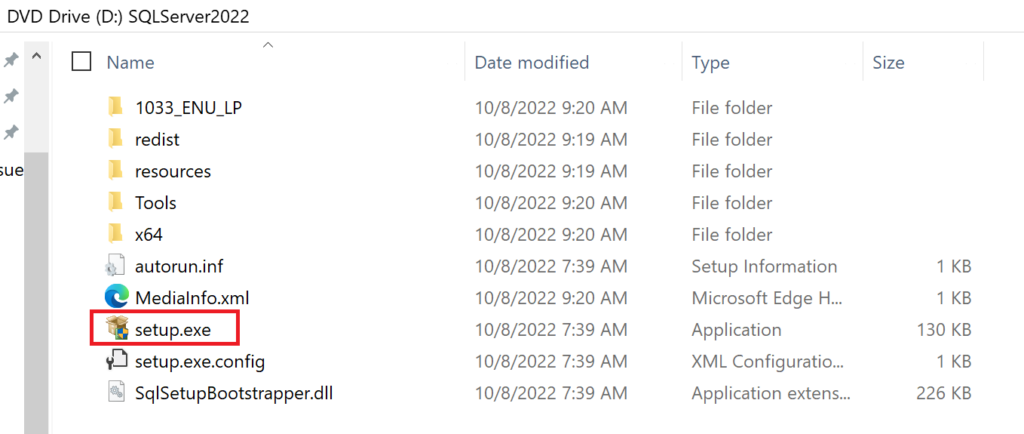
After the ISO file has downloaded, double-click on the file in File Explorer, which will mount a “DVD” to your system, which will open another directory. In that directory, double-click on “setup.exe” to run the installer for SQL Server.

When the installer window opens, click on the “Installation” page from the left-hand pane, then click on the first link that says “New SQL Server standalone installation or add features to an existing installation”.

If you have an issue where clicking that link doesn’t open anything else, seems to do nothing, check out my other post about how to resolve that issue.

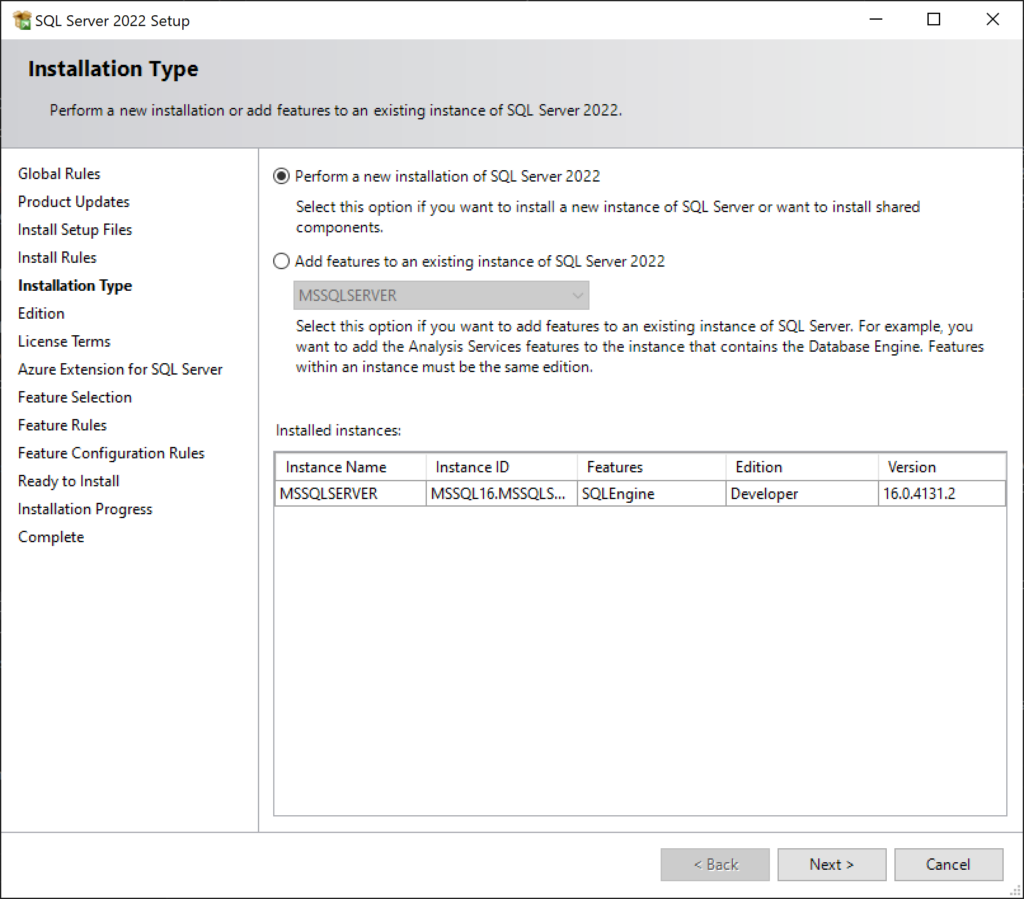
Click “Next” multiple times to move through the initial installation steps for SQL Server 2022. Review the information on each page before moving past it to ensure the settings are what you want them to be. When you come to the following page, keep the radio button for “Perform New Installation” selected then click “Next” again.

The “Edition” page is the one we’ve been needing to get to. On this page, you can change the selection from “Specify a free edition” to either one of the other two options to install Standard or Enterprise editions.

If you select the option for “Use Pay-As-You-Go billing through Microsoft Azure”, there is a dropdown menu that will let you specify Standard or Enterprise editions. Note that going with this option would then later require you to specify Azure Subscription information to bill the server usage to.

If you select the option for “Enter the product key”, you can then give a license key for SQL Server 2022 if you already have one. Review the two optional checkboxes under the license key box to select any options that apply to you. It looks like if you don’t specify a license key after choosing this option, you can still move forward with the installation, but there must be some point in the future of using the software where you’ll be required to provide a license key to keep using it.

Note: If you go through the “proper method” I listed above, the license key should be prefilled in the third option when you get to this page with the properly downloaded ISO file. For our situation, we also need to make sure the checkbox below the license key box “I have a SQL Server license with Software Assurance or SQL Software Subscription” is checked, since we use Software Assurance for our licensing.

After you’ve made your selections for the “Edition” page of the installer, you are ready to move through the rest of the installation process, specifying whatever options required for your own version of SQL Server.

Summary

There are two different methods I have found for getting the installer for SQL Server 2022 Standard edition, and neither of them are necessarily intuitive. Based on your needs, you can choose either the “proper” or the “workaround” methods. I hope this tutorial has helped you download the software without having to spend a day figuring it out like my coworkers and I had to.

Handy Use of a SQL Cursor

Welcome to another coffee break post where I quickly write up something on my mind that can be written and read in less time than a coffee break takes.


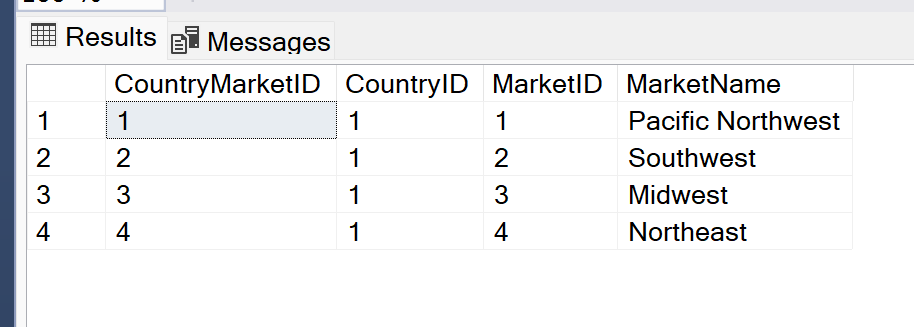
Several months ago I ran into a situation where I needed to update the records in one table based on values in a related reference table. To do this update, I was going to need to run an existing stored procedure once for every record in the reference table, which I believe contained information about countries and markets within those countries. The reference table looked something like this:

The stored procedure I needed to run had input parameters for CountryID and MarketID as well as several other things that aren’t important for this post. When I was originally looking at this task I needed to complete, I was not looking forward to running the stored procedure manually dozens of times, one for each combination of Country and Market. But I knew there must be a better way. I’m a programmer, I can find a way to automate this tediousness.

A practical use for a cursor

If you’ve developed SQL code for any length of time, you’ve probably heard an older DBA or database developer tell you to never use cursors! I know that I personally have been reminded of that many times, so I had never even considered using one or tried to use one. But when I was staring down the barrel of updating two values in a procedure execution call, running it, waiting for several minutes for the procedure to complete, then doing it all over again, for dozens of times, I knew I had to give a cursor a try.

I of course had to Google how to write a cursor, since I had never done that before, but was quickly able to write a script I would need. The cursor was created to loop over every record retrieved from the reference table using a query I wrote, and injected each of the CountryID and MarketID values into the input parameters of the stored procedure. This easily automated the tedious manual work that I would have needed to do myself, and it did it in a lot less time since it wasn’t a user having to slowly update each relevant value each time they needed to change.

Summary

Maybe cursors aren’t quite the devil I always believed them to be. I know they can certainly cause performance issues on databases when they’re written into stored procedures and ran regularly, turning what should be set-based work into row-based work, but I have learned that there is at least one fantastic use. And this use will make my life easier going forward any time I need to run one stored procedure a lot of times with different input values.

Sources

Here is the main StackOverflow answer I used to help me write my own query: https://stackoverflow.com/a/2077967. And you can see, the first comment of this answer is literally calling cursors evil, which I find amusing.

Two Useful Keyboard Shortcuts for SSMS

Welcome to another coffee break post where I quickly write up something on my mind that can be written and read in less time than a coffee break takes.


This morning I was doing my normal work when I had a realization that I should share something I find super useful and use frequently use in SSMS that a lot of developers seem to not know about. They are small actions but they make your life easier when doing a lot of query editing in SSMS.

How to Minimize the Results Window

I have told many developers about this keyboard shortcut and they all appreciated it. I’m sure most people that frequently work in SSMS would like to be able to minimize and maximize the results window as needed in order to give themselves more screen real estate to work with while coding but still be able to see their query results as needed. But there is no minimize button for the results window of SSMS.

The only way that I know of to minimize and then maximize the results window in SSMS is to do CTRL + R. I use this keyboard shortcut every day at work while writing queries or updating existing queries.

How to Refresh the Intellisense

I have also had to tell many developers about updating the intellisense suggestions of SSMS since it will often trip them up if they don’t know how it works. First, you should understand that the intellisense offered by SSMS is only accurate as of the time you opened your query window or changed the connection for the query window (usually). If you’ve been working in the same query window for a while and have made DDL changes to any tables, functions, stored procedures, etc., intellisense is likely out of date and could tell you that a table or column you’re trying to reference doesn’t exist when you know it does.

If you ever run into this situation where it’s telling you something doesn’t exist but you know it does, use CTRL + SHIFT + R and the intellisense suggestions/corrections will be updated.

Bonus shortcut for Red-Gate SQL Prompt

Similar to the intellisense built in to SSMS, if you are using the SQL Prompt tool from Red-Gate, you can run into the same issue with the tool not recognizing that objects or columns exist when you know that they do. If you run into that issue and would like to update the suggestions list for SQL Prompt, use CTRL + SHIFT + D.

Updatable Views

Welcome to a coffee break post where I quickly write up something on my mind that can be written and read in less time than a coffee break takes.

Recently, while exploring possible options for converting our existing ETLs to working with Postgres, I found myself asking the question “can you update a table using a view that has been created on that table?” and the answer is Yes for both Postgres and SQL Server, which I learned after doing some research.

In Postgres, there is a concept of an updatable view, which is essentially a very simple view, that usually doesn’t include a join to a second (or third or more) table. There are other qualifications for what makes a view updatable, but it is generally the fact that the query creating the view is very simple. If a view meets these criteria, you can in fact update the base table using a query to the view.

For example, if you have a table called employee, then you create a view on top of that table which selects most but not all the columns from the base table, with the view being called v_employee, you can then run this query and it will update the data in employee.

UPDATE v_employee
SET full_name = 'George Smith'
WHERE emp_id = 15;

This concept is intriguing to me, and could also be really useful in updating our ETLs more quickly after we convert to Postgres, so I thought I would share this fun little fact with everyone.

Sources

Postgres vs. SQL Server, Part 3

If you haven’t seen it already, I had two previous posts listing differences I have found between Postgres and SQL Server while learning to develop in the Postgres environment. As I am continuing to learn, I am finding even more differences that I think are interesting, and they are going to be shared below.

What’s in this post

Creating a temporary table

The difference between SQL Server and Postgres for creating a temp table is small, but significant. Mostly because my company uses temp tables frequently in our stored procedure and ETL code, so as we migrate off of SQL Server, we’re going to have to do a lot of updating to move temp table statements to Postgres. The syntax for SQL Server is to use a hashtag/pound/number symbol in front of the table name, or to use a double-pound symbol to create a global temporary table, like “CREATE TABLE #MyTable” or “CREATE TABLE ##MyGlobalTempTable“. In Postgres, the syntax requires that you use the TEMP or TEMPORARY keyword to make the temp table, like “CREATE TEMP[ORARY] TABLE my_table“.

You also have to use the TEMP or TEMPORARY keyword when creating a temp table in Postgres by doing a SELECT INTO statement, such as SELECT column1, column2 INTO TEMP TABLE my_table. In SQL Server, that same command would look like SELECT column1, column2 INTO #MyTable.

General differences between temp tables in each engine

Not only is the way you create temporary tables different between Postgres and SQL Server, but how the tables are actually stored on the database is completely different between the two as well.

In SQL Server, any temporary objects are stored in a separate database called tempdb. When creating a temporary table, you can specify whether it’s localized to your current session only or whether it is a global temporary table that can be accessed from different sessions or query windows, as I mentioned above. To do the first, you specify the table name as #MyTable, then the do the latter, you specify the table name as ##MyTable.

In Postgres, temporary tables are not stored in a separate database. Instead, they are put into their own system schemas whose names are based on numerical values (ex. pg_temp_1, pg_temp_2, etc.), so it’s harder to see the specific location where your temp table is being stored. You also are generally unable to access a temp table in one session from a different session, so there is no concept of a global temp table in Postgres.

One similarity of temp tables between the two engines, though, is that they are dropped/deleted in both as soon as the session in which they were created ends.

Getting the current UTC time

In SQL Server, there are two built-in functions that allow you to get the current UTC time, GETUTCDATE() and SYSUTCDATETIME(). The former returns the time in type DATETIME, and the latter returns the time in type DATETIME2 (more precise).

Postgres also has multiple functions and methods of getting the current UTC time, but they look much different from each other than the SQL Server options look. While there are more than just these two options, the most common ways to get the UTC time are the following:

  • SELECT NOW() AT TIME ZONE 'utc';
  • SELECT CURRENT_TIMESTAMP AT TIME ZONE 'utc'

Although the two options look different, they will return the same value. I’ve had some issues trying to use one versus the other in different scenarios in the SQL code I’ve written for Postgres, so it seems like there may be times where it’s better to use one over the other, but I’m just not able to differentiate those scenarios right now. There are also other options for getting the current UTC time, but I won’t cover those here.

Updating a table with a JOIN

One of the biggest syntax differences between T-SQL and pgSQL that has really gotten me confused so far is the formatting of an UPDATE statement that includes a JOIN to a different table. To me, the syntax of T-SQL makes a lot more logical sense and the pgSQL syntax doesn’t seem as intuitive. The T-SQL syntax is as follows:

UPDATE p
SET p.MyColumn = s.MyColumn
FROM person AS p
INNER JOIN staging AS s
	ON s.MyColumn2 = p.MyColumn2

Then the syntax for pgSQL is:

UPDATE person
SET p.my_column = s.my_column
FROM staging
WHERE staging.my_column2 = person.my_column2

To me, the pgSQL syntax doesn’t scream “joining to a different table”; it really looks to me like a simple update statement without a join. Yet the join is there. Also, it doesn’t seem to let you use aliases for the query, which I also dislike since I use aliases for every query I write. I wish I could change the standard for the pgSQL syntax, but obviously that isn’t within my power so I’m going to have to learn to live with it.

Making a column nullable

Unlike the pgSQL syntax for updating a table using a join to a different table, I actually like the syntax of making a column nullable in pgSQL more than I like the T-SQL syntax. The pgSQL syntax seems much more clear and straightforward for this action. The syntax in Postgres for making a NOT NULL column nullable is as follows: ALTER TABLE my_table ALTER COLUMN my_column DROP NOT NULL;

The T-SQL syntax for the same action is less clear, since you are basically redefining the column like you would if you were adding it, instead of specifying what you are changing. If you had a column that was set to NOT NULL in a table, you would write out the whole definition of the column again but write NULL instead of NOT NULL. For example: ALTER TABLE Mytable ALTER COLUMN MyColumn INT NULL;

I’m not fond of that T-SQL syntax because you can’t tell at a glance what is changing with the column definition unless you already knew what it was before running the statement. Since that same statement would also be the same syntax for changing the data type for the column if the column was already set to be nullable.

Data type for automatically updated binary numbers

In SQL Server, there is a data type called TIMESTAMP or ROWVERSION that is an automatically updating binary value that is added to a record when that record is updated or inserted. (The TIMESTAMP synonym for the ROWVERSION data type has been deprecated.) My company currently uses this data type heavily to help identify changed data quickly for our ETLs. As we are looking at moving everything into the Postgres world, we have found that Postgres does not have any built-in functionality similar to the ROWVERSION column, at least not at the precision we would need it to be (you can read about system columns here). You of course can store binary data within a table, but there is no data type for columns that will automatically increment a binary value when data is changed with the same precision as SQL Server’s ROWVERSION.

There do seem to be some ways people have replicated that functionality using custom triggers/functions that we are considering, but I haven’t looked into it that much personally so I cannot yet speak to how well that would work to replicate SQL Server’s ROWVERSION functionality. So we are either going to have to add these custom triggers/functions or find another reliable and fast way to identify changed data between source and target for our ETLs. Soon, I am hoping to do a blog post about the possible Change Data Capture (CDC) options for Postgres that we are considering.

Conclusion

There are so many weird quirks and differences between SQL Server and Postgres that I am having to learn as I grow in the Postgres development space. While I have already listed so many of them across several posts now, I am sure there will be many more to come as I keep learning. And I will continue to compile a list of the differences and share them here on my blog as I find them.

Sources

  • https://www.postgresqltutorial.com/postgresql-tutorial/postgresql-temporary-table/
  • https://www.postgresql.org/docs/current/datatype-datetime.html
  • https://www.postgresqltutorial.com/postgresql-tutorial/postgresql-update-join/
  • https://www.postgresql.org/docs/7.3/sql-altertable.html

More Postgres vs. SQL Server

Welcome to a coffee break post where I quickly write up something on my mind that can be written and read in less time than a coffee break takes.

As I’m getting further into my PostgreSQL adoption project at work, I am continuing to learn about so many more small differences between Postgres and SQL Server that I never would have expected. None of the differences I’ve found so far are profound, but they will pose challenges for all the developers we have (including myself) that have only worked with SQL Server.

Postgres does not have default constraints

That’s right, there is no way to make a default constraint on a Postgres table, instead you make a default value, which cannot have a name assigned to it. In SQL Server, you can define a default constraint in essentially the same way as you would define a unique or key constraint and you can give that constraint a name. In Postgres, you simply specify that a column has a default value when adding that column to a table. In theory (I haven’t tested it yet), the generation of default values works exactly the same between the two engines, one just isn’t saved as it’s own script or file with a name.

The index differences are amazing (and confusing)

I’m not going to lie, the prospect of figuring out when to use what kind of index with Postgres is daunting to me. Deciding which type of index to use with SQL Server is very straightforward, since you only need to know if you already have a primary key/clustered index on the table already and then go from there. You pretty much only have clustered or non-clustered indexes in SQL Server. But Postgres has a handful of different possible options and you need to better know how the data will be queried in order to pick the best one. The default/usual best option seems to be a B-Tree index, which is comforting and familiar, but one day I know I’ll likely have to figure out the other options as well.

The default length of object names is really short

Of these three new items I learned recently, I think this one is going to be the most annoying. The name length for objects in Postgres is surprisingly low, only 31 characters. The max length for objects in SQL Server is much longer. I’m mostly concerned that we’re going to need to figure out how to rename many long object names as we migrate off SQL Server, and that could be tedious. But we’ll see how that goes. I read somewhere in my research that you may be able to change this default length, so that will need to be something else for me to research.

What is Liquibase?

Liquibase is a tool used to track and deploy changes to databases. It can connect with Git and other software, including CI/CD software, allowing your team to collaborate and track changes to your databases. There are several different software options similar to (and even better than) Liquibase, but what makes this tool unique is that it has both an open source version, which could benefit smaller organizations that don’t have as much cash to spend on database software, and a “Pro” version, which gives more features for those who need it and can pay the additional cost.

I’m currently reviewing this software and playing with it for a project at work, and I’ve found it a bit challenging to figure things out from the Liquibase websites and documentation. I’m summarizing my findings here not only for others who may read this in the future but also to help myself get everything organized and clarified in my mind. This will be a two-part series of posts, with the second providing a deep dive into how to use Liquibase with your database.

What’s in this post:

  • Why would you want to use this tool?
  • Features of open-source edition
  • Features of Pro edition
  • How to get 30-day free trial of Pro edition
  • Other options for similar tools

Why would you want to use this tool?

You want to be able to track and manage changes happening in your database

In the modern development process, all code, including database code, should be tracked using source control. Using source control enables you to have a complete history of what changed when, and who made that change. Having this level of tracking can be great for overall documentation of what you have in your systems, but it can also help immensely in troubleshooting bugs and other issues in your code to find when an issue started happening. It also enables you to quickly revert any bad or unintended changes without having to update all the code again manually. This is a well-known and well-used system in the software development realm but doesn’t seem to be quite as popular in the database realm, at least from my own experience. Liquibase can help organizations start on this journey.

You want to automatically deploy database changes to multiple environments

When you first start using Liquibase, you can generate a changelog file that acts as a baseline for recreating the database, with the file containing all of the SQL queries necessary to recreate all objects within the database. Then, as you make more changes, those will be added to one or more files that can be tracked with Git or other source control to help with deployments and change tracking of your system. If you are looking for a way to automatically deploy your database changes through pipelines, Liquibase should be able to help with that, although I haven’t gotten that far in my project so I can’t say for sure. But based on how the tool is set up, you should be able to use the software on a build and deployment server and have it execute the changelog scripts you create on databases in other environments. You can read more about the integration with CI/CD systems on the Liquibase website.

You need a database change-tracking tool that works with multiple database engines

On the Liquibase website, they claim they can work with over 50 database engines, which is a huge claim to make and an accomplishment to have. There are very few other options for this type of tool that can claim to support more than just SQL Server, let alone 49 other database options. I am looking at this tool exactly for this reason because I need to be able to manage database changes on at least SQL Server and PostgreSQL going forward, and perhaps others if needed since it supports so many different options. At this point in my current tool exploration project, I have only played around with the tool and how it works with Postgres since that’s the future my department is looking at, but I’m sure it would be just as simple to set it up to work with a SQL Server database as it has been with Postgres.

Features of the Open-Source Option

I’m not going to go through and list every single one of the features of the open-source version of Liquibase because you can see that on their website. Instead, I will discuss the features I am interested in and why I think it’s interesting that those features are available completely for free.

Run Preconditions Before Executing SQL Changes

The concept of the preconditions interests me because it almost combines a custom system my department uses to validate data with the change tracking and deployment of changes. Although I haven’t had a chance to use the preconditions in my testing yet, it looks like a cool feature because it allows you to validate data using a SQL statement before the next change query is executed. For example, if you are adding an ALTER TABLE statement to your changelog file to drop or change a column, you can first add a precondition that will check to see what the data looks like in the column to ensure it doesn’t run if data exists in the column. With the precondition for SQL files, you specify an expectedResult value and then the query you want it to run, and if the results of the query don’t match the expectedResult value, it will fail the execution of the file and the changes won’t get deployed. This would be very useful for ensuring you’re only running code in the scenarios you want it to be run in.

Preview SQL Changes Before Running Them

I’ve already used this feature in my testing to see what exactly Liquibase is doing under the hood when I run certain commands and apply changes, and it seems useful to me. I, like a lot of database developers, am paranoid about knowing what exactly I am about to execute on a database, so Liquibase provides that capability with the command “update-sql” which will print out in the CLI all of the SQL queries that will be executed when you apply the existing changelog and changesets to your database, including the ones that the tool runs in the background to track the changes in the two log tables it uses.

Automatically Detect & Script Change for Non-programmable Objects

When I was first working with Liquibase for my proof of concept project, I thought that the command to automatically generate changelogs based on the current state of the database was only available in the Pro version. But I finally figured out that my assumption was incorrect, you can use the “generate-changelog” command even on the open-source version, but it will only generate queries for what I call non-programmable objects, everything but functions, procedures, etc. If you are working with the open-source version of Liquibase and use the “generate-changelog” command, it will generate a new changelog (or overwrite an existing one if you specify an argument) containing SQL queries to recreate every object in your database that isn’t one of the programmable type objects.

I was happy to find this command in the Liquibase arsenal because it’s a working method that my department uses regularly with our current database change management and source control tool. The normal workflow for a developer making a database change is to go into the database, make the change using SSMS, and then use our existing software to automatically detect the change and generate a migration script to track and implement that change upon deployment. This was a workflow that I was hoping to not lose as we change tools, and it looks like we won’t lose that if we switch to Liquibase. In my next post, I’ll cover both of the two different methods of creating and tracking changes with Liquibase, which each have a different angle of attack for where to make the change.

Features of the Pro Edition

I have been working with a 30-day free trial of the Pro edition of Liquibase to see what features it offers in that edition that we might need. If you would like to see a full list of the upgrades you can get with Liquibase Pro, visit their website to compare it against the open-source version.

What I found while working with the tool is that you do not need the Pro edition to use the command “generate-changelog” like I originally thought. If you would like to be able to automatically script out programmable objects like stored procedures and functions, you will need the Pro version for that. However, if you only want this tool to track changes to tables, foreign keys, primary keys, and other constraints (see the documentation for the entire list), then you would be fine to use the open-source edition of Liquibase.

Another big feature of the Pro edition that most people are probably interested in is that it is the only version of the software that you can integrate with CI/CD tools to do automatic deployments of the code you’re tracking with the tool. This feature would be a big one for my company since I doubt we are okay with going back to manual deployments of database code across dozens of databases in multiple environments.

The final reason you might choose the Pro edition over the open-source edition is that you can get a much greater level of support from the company with the Pro version (which makes sense). Pro comes with what they define as “standard” support which is through email. If you would like more advanced and involved support, such as 24-hour emergency help, you can add that to your subscription for an additional cost.

How to get a 30-Day Free Trial of Pro

If you would like to try out the Pro version of Liquibase to see if it meets your needs, they do offer a 30-day free trial through the website. You will need to go through the process of giving your email and other contact information, as well as setting up an appointment with one of their representatives to get the license key. In my experience, since my company is seriously considering this tool as an option and I can’t do the contact or negotiation for licenses (someone else handles that), I went through the meeting setup process but then contacted the representative and told them I would be unable to make the appointment, and still received the trial license through an autogenerated email. As of writing this, I still haven’t been bombarded by sales emails or calls from the company which I appreciate. It’s nice to be able to try out the full version of the tool without being harassed for it.

Other options for similar tools

While there are other very expensive options for database change management and tracking software available, Liquibase seems to be unique in that it offers a lot of useful features without requiring you to pay for them. They outcompete the other free options by a long shot since they can work with different database engines. It’s hard for them to compete with options like Red-Gate SQL Change Automation or Flyway since those tool suites are robust and expensive, but they are a viable option for people who don’t want to be stuck paying thousands of dollars per year for this type of software.

To see a more complete list of alternatives for this type of software, you can review the list that originally helped me in my search at DBMSTools.com.

Want to learn more details about how to work with Liquibase?

Next week, I will be posting about how specifically to set up and work with Liquibase since the startup documentation on their website was scattered and hard to move through as a beginner with the software. I thought I would make it easier for others to learn how to work with this tool by posting the notes I made while working with it.